Change status text in a screenshot
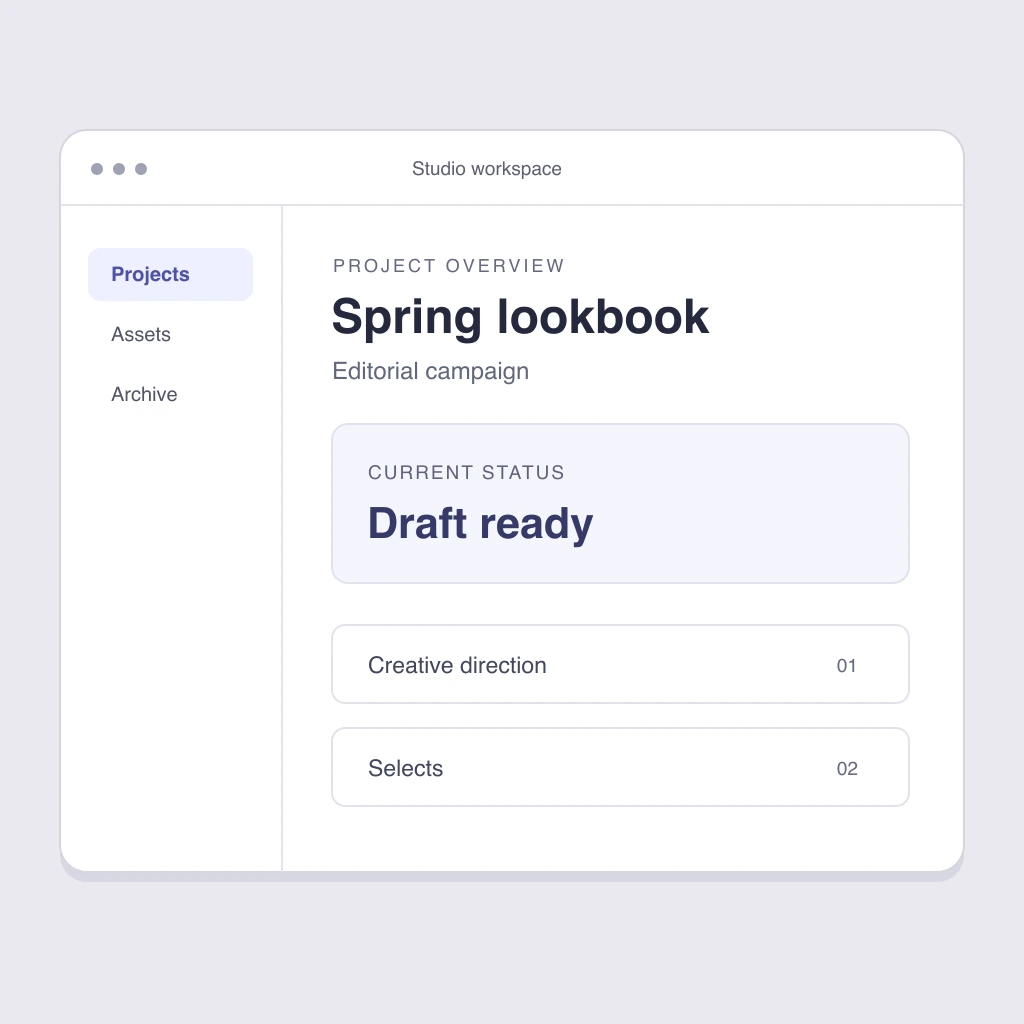
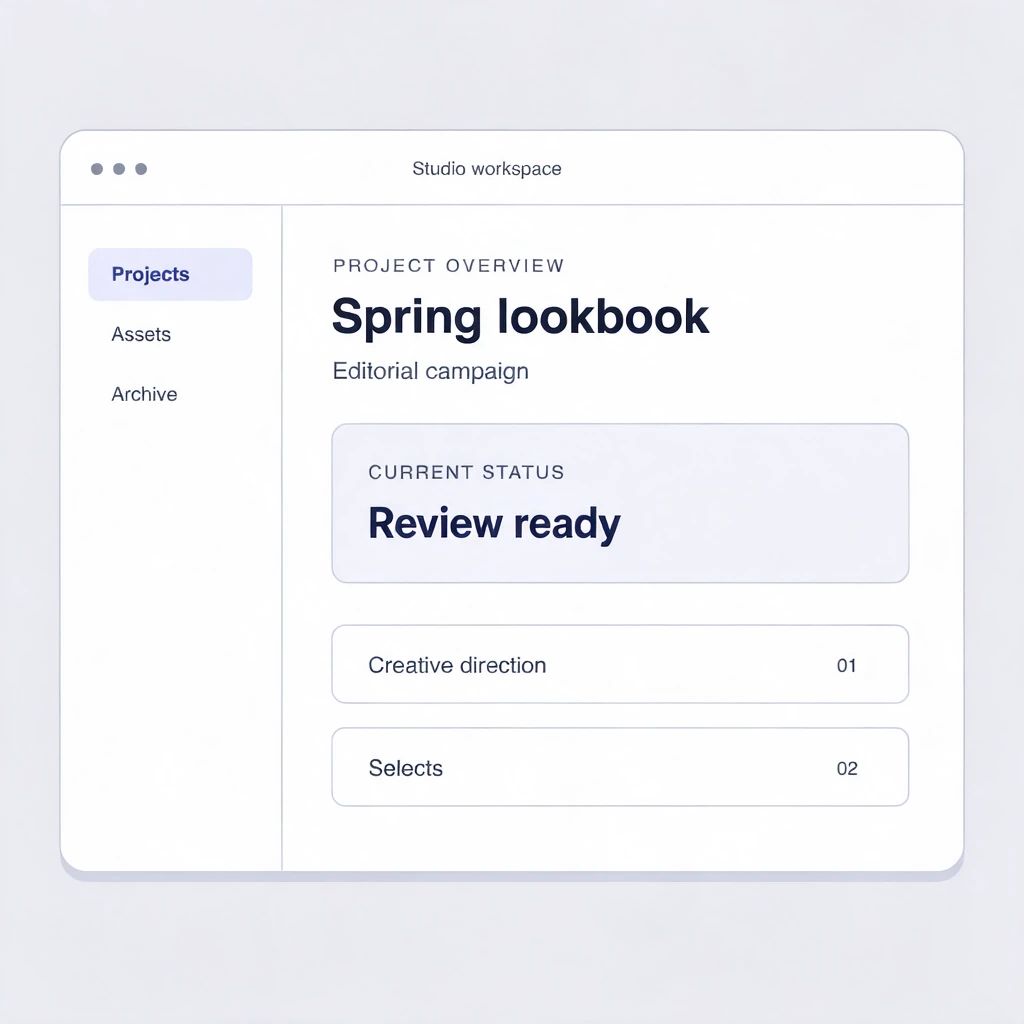
The edit kept the bold sans-serif style, the panel layout and the surrounding labels. The new status is slightly darker, and the background has a subtle change in shading.
Image text editor
Replace, remove, add or translate words in a photo, poster or screenshot. Enter the wording, guide the area and review the instruction before generating.
Actual editing examples
One market poster, three edits. Compare a new date, a removed line and a Spanish translation.
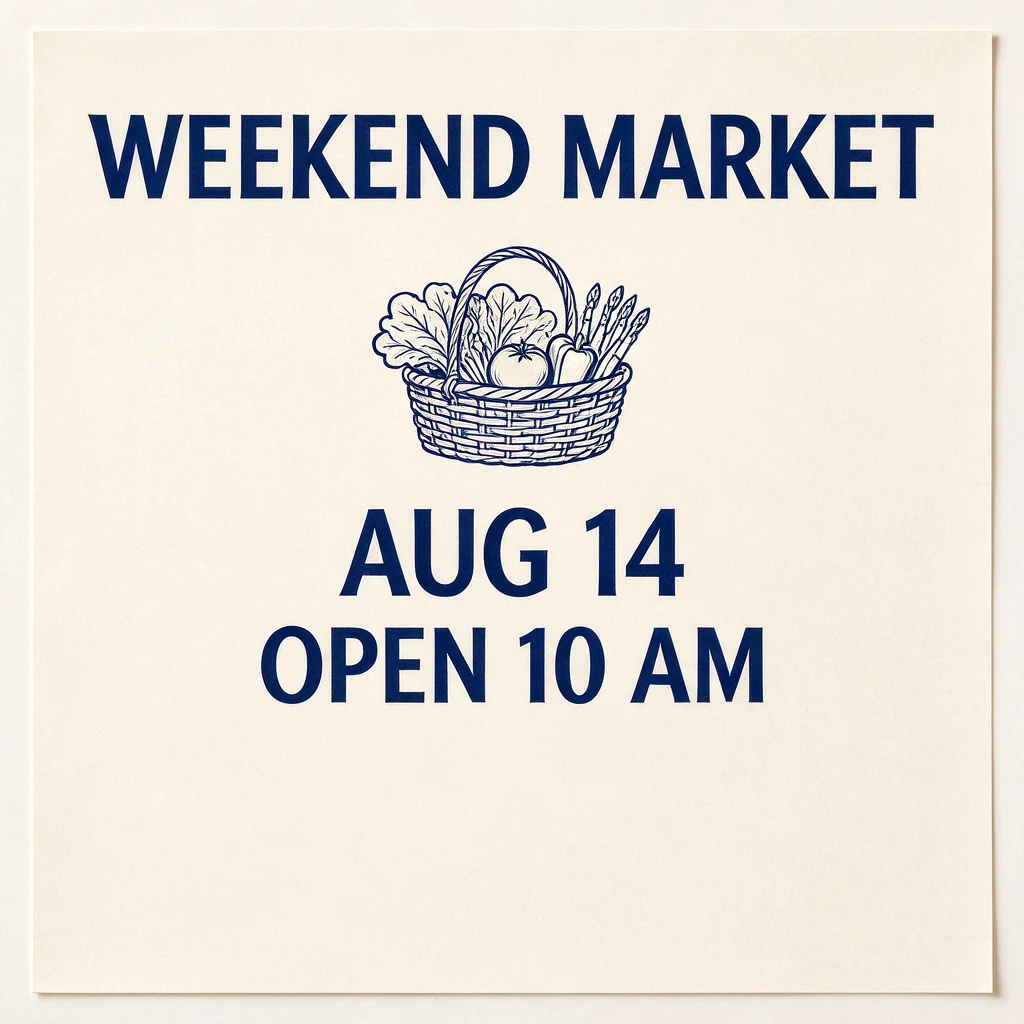
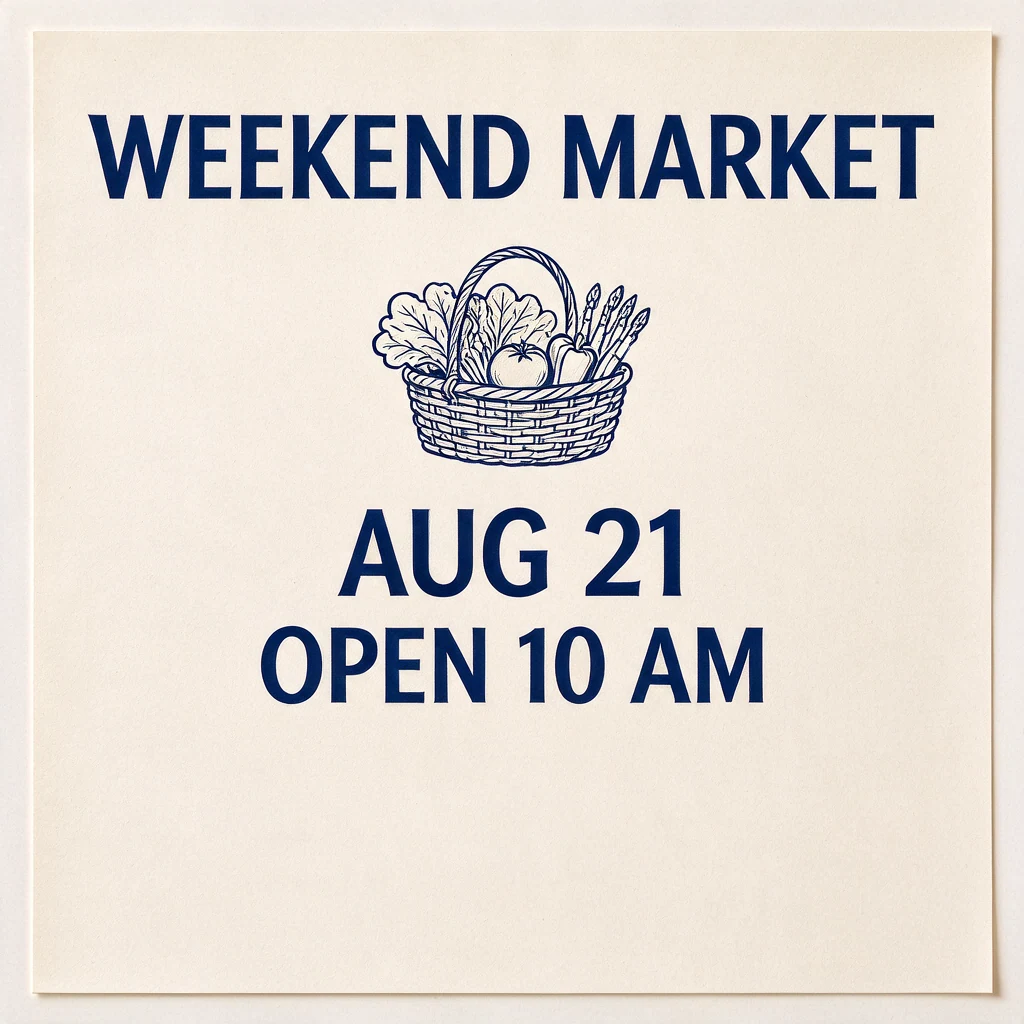
The date changes from AUG 14 to AUG 21. The market name, basket illustration and opening time are still visible.
The edit kept the bold sans-serif style, the panel layout and the surrounding labels. The new status is slightly darker, and the background has a subtle change in shading.


The new middle line kept the centered uppercase style, and LUMA FIELD and 30 mL stayed legible. Letter spacing and the texture of the surface changed slightly.
Replace an event date, add a caption, remove lettering, translate visible words or extract English and Simplified Chinese as editable text. AI image edits use credits. Browser text extraction does not submit an image generation task.
Upload a JPG, PNG or WebP with readable lettering.
For Replace text, enter the old and new wording exactly. Draw a box around the part to edit when the same words appear more than once.
Review the instruction and credit cost, then generate. Check spelling and nearby artwork against the original before downloading.
The model uses the original lettering as a style reference. Small text, custom fonts and perspective may change; compare the output carefully.
The region is position guidance for the model. It does not provide a hard mask or guarantee unchanged pixels outside the box.
Image edits use the existing model price shown beside Generate. Editing fields, browsing and browser text extraction do not submit an image-generation task.