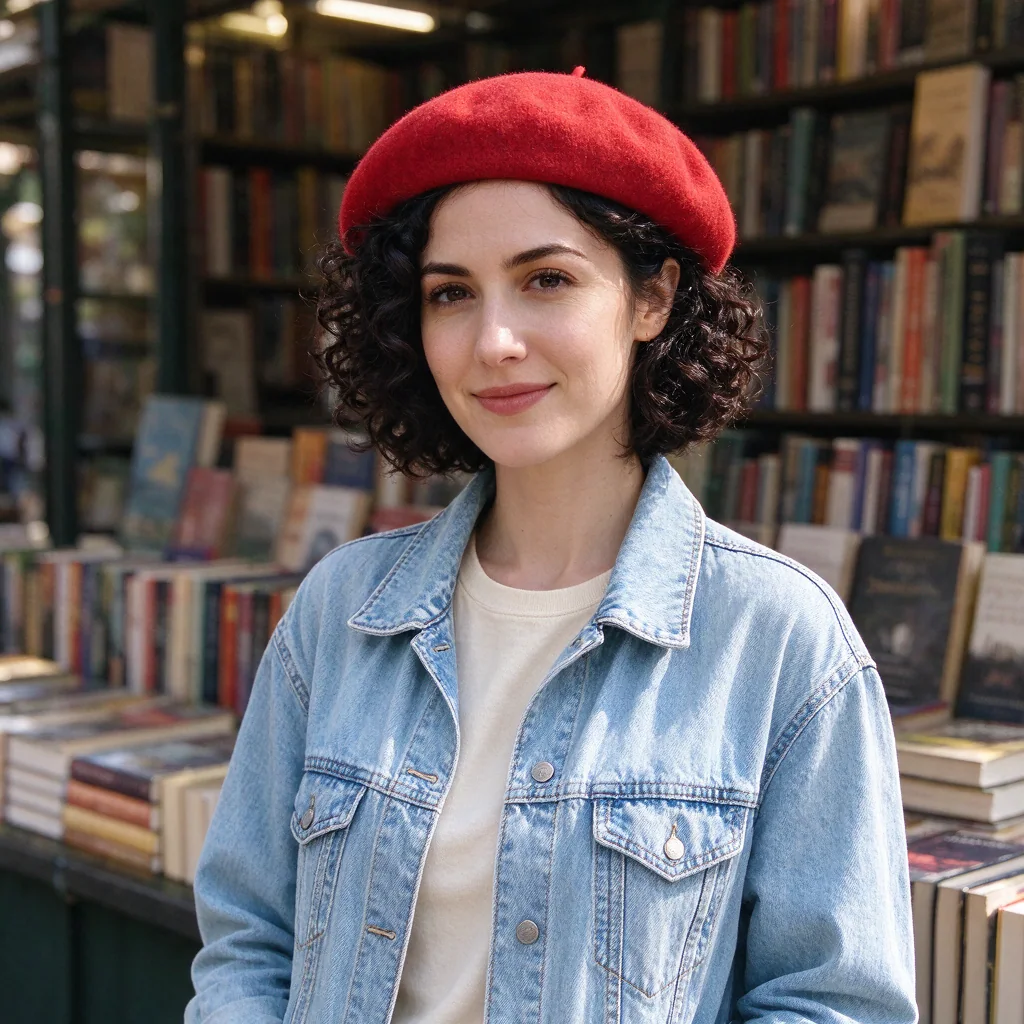
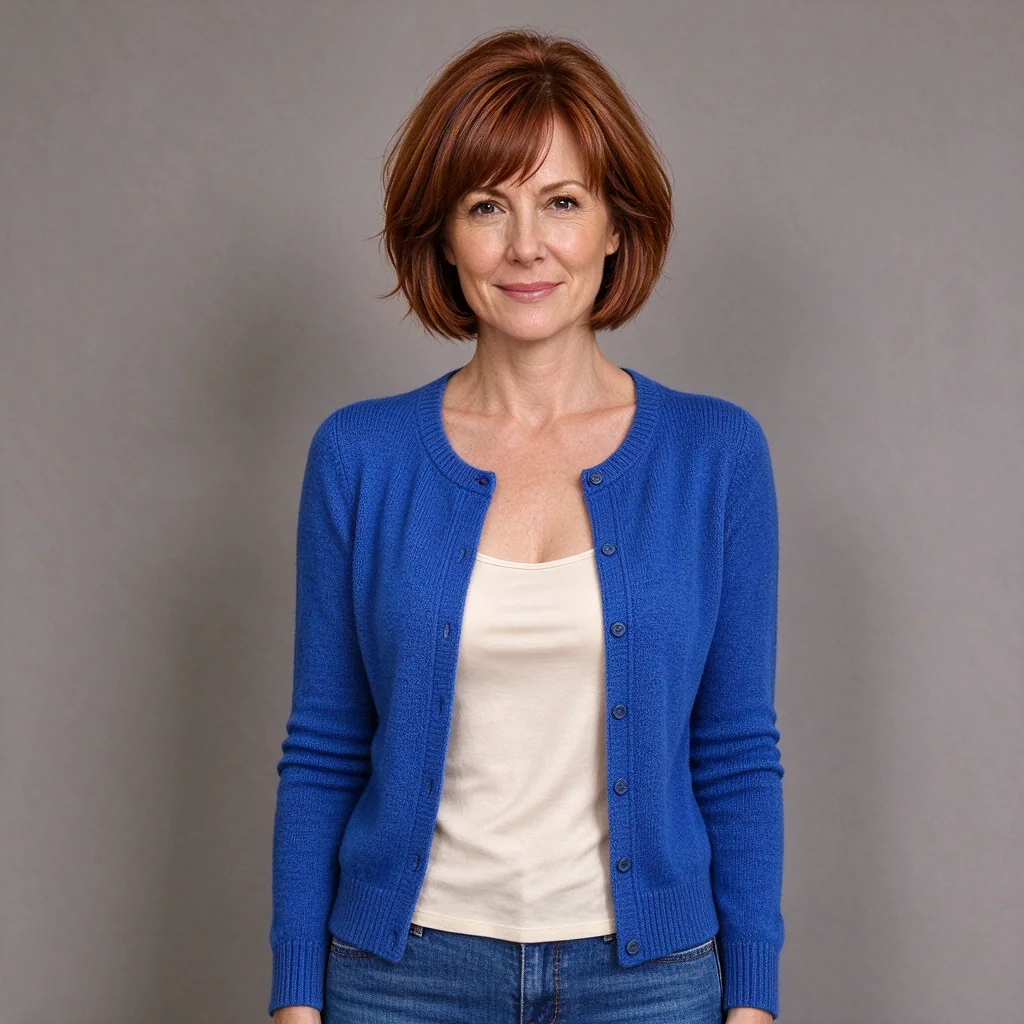
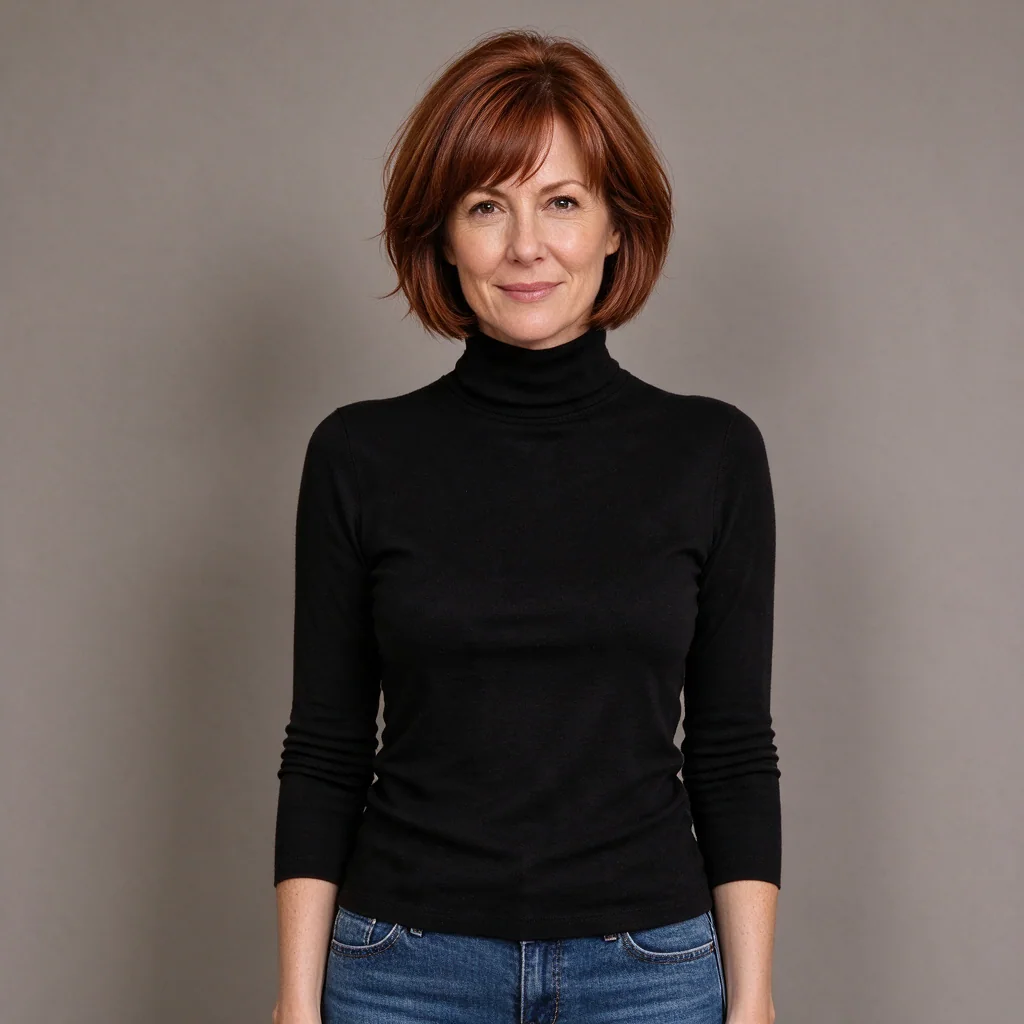
Photo Enhancer
A brighter look for everyday moments.
Photo enhancement
Upload a photo, choose an AI model and review the instruction. Generate with the quoted credits to improve clarity, balance color or repair visible damage. Results vary by model and photo.
Add a photo before generating. This tool edits your reference image.
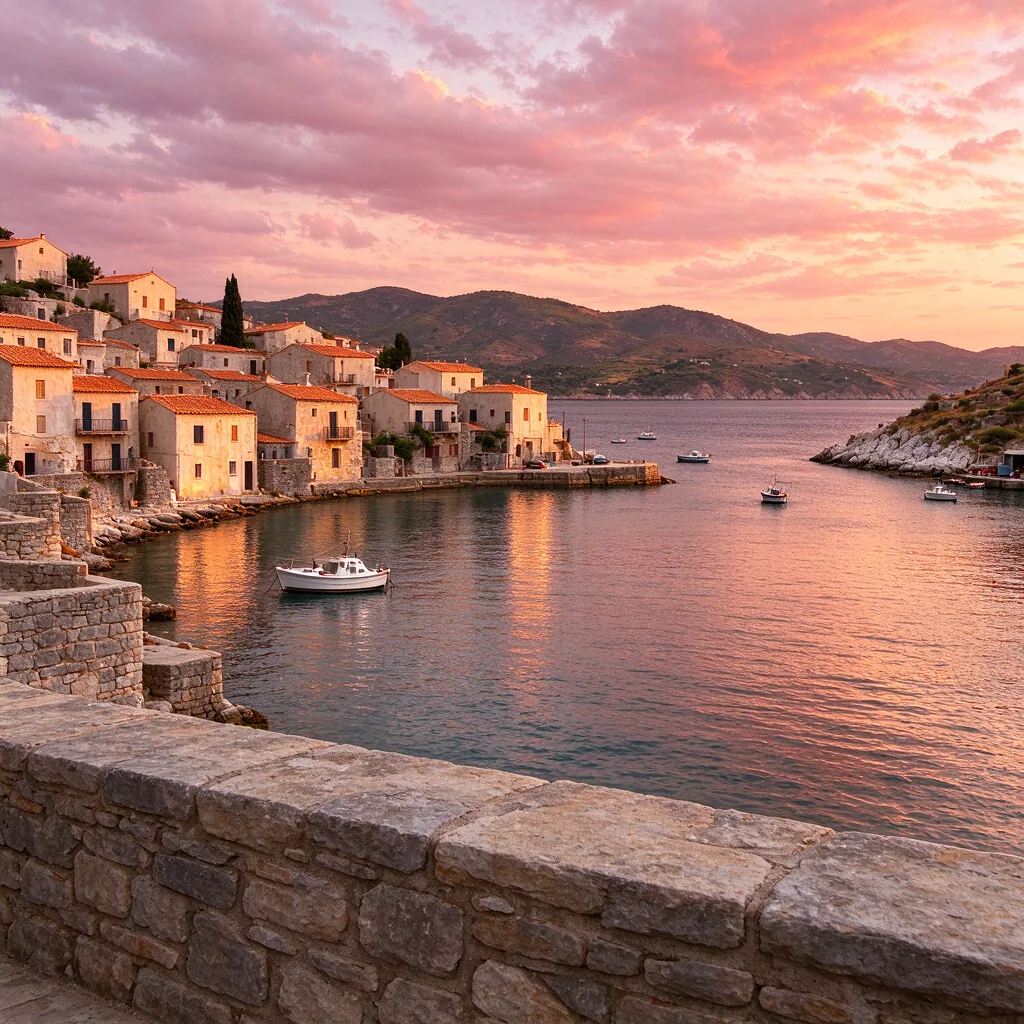
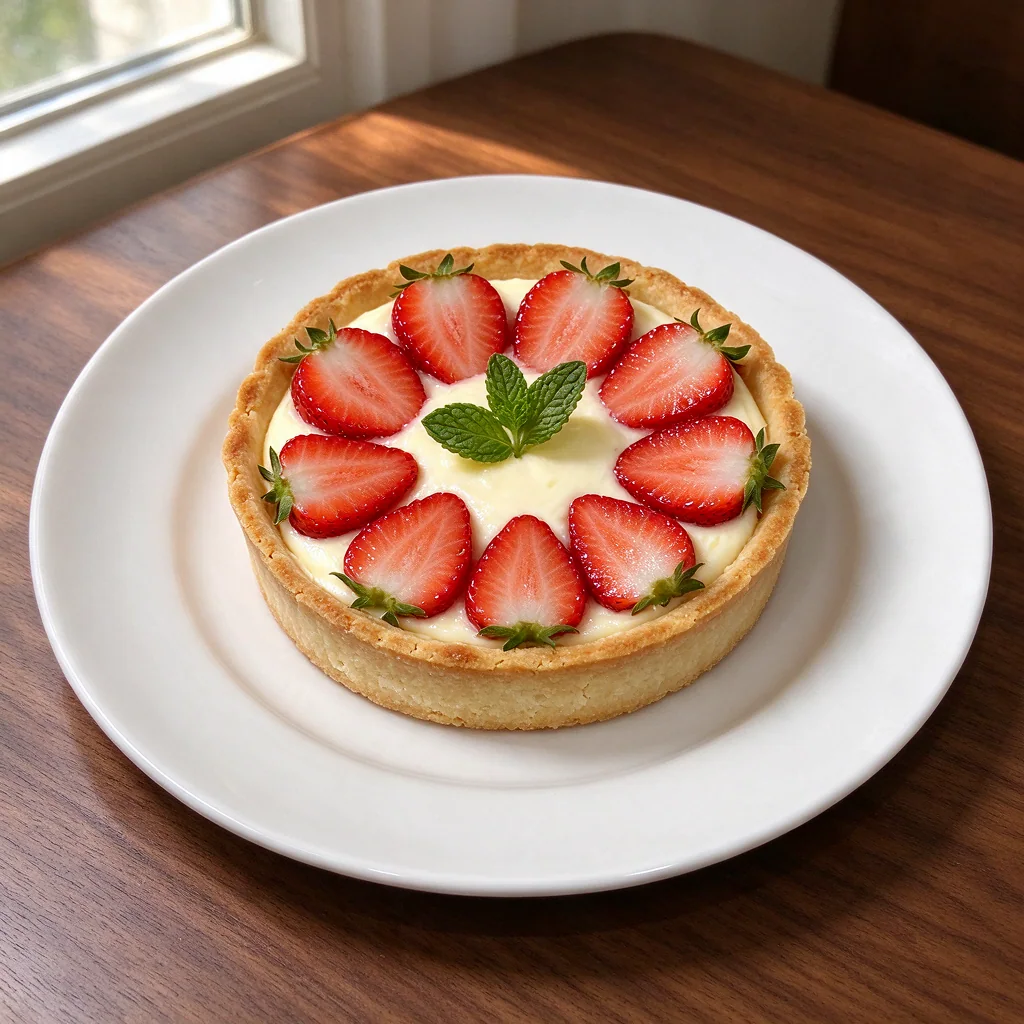
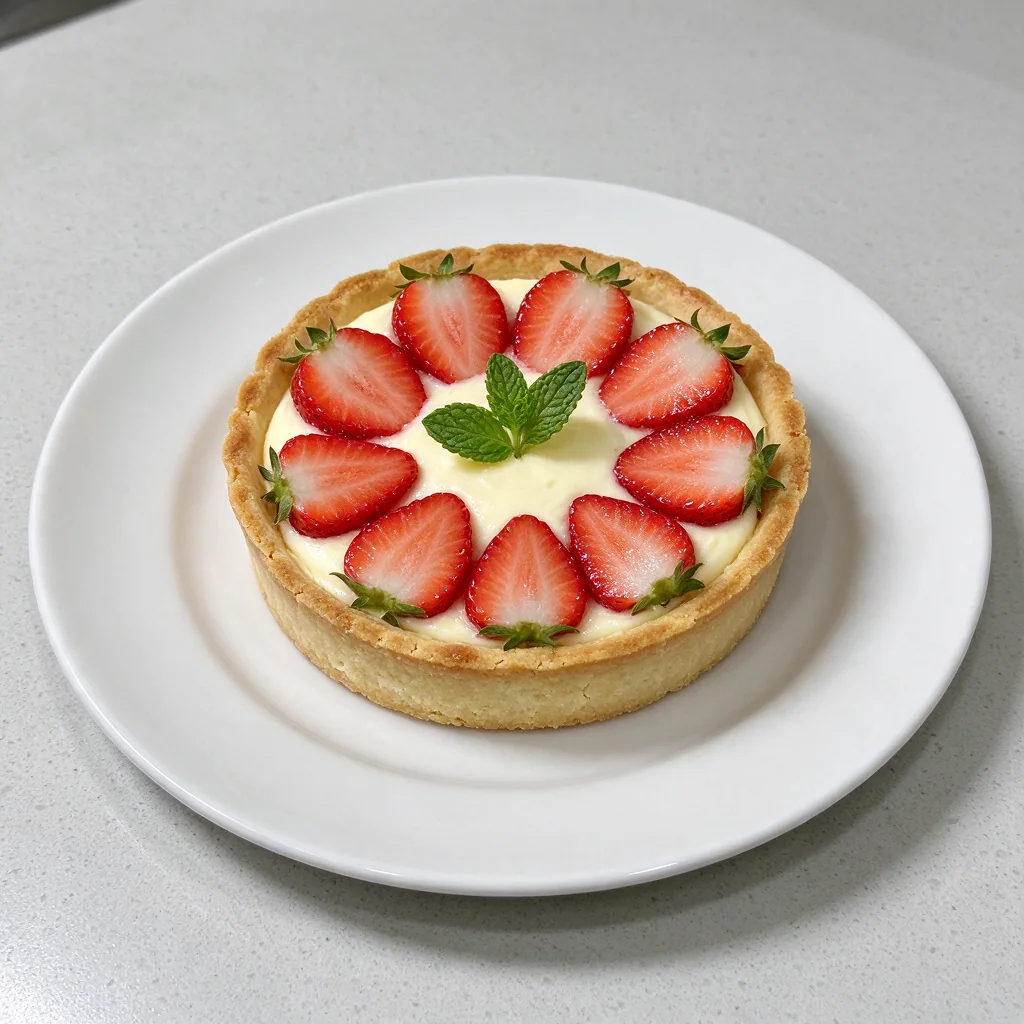
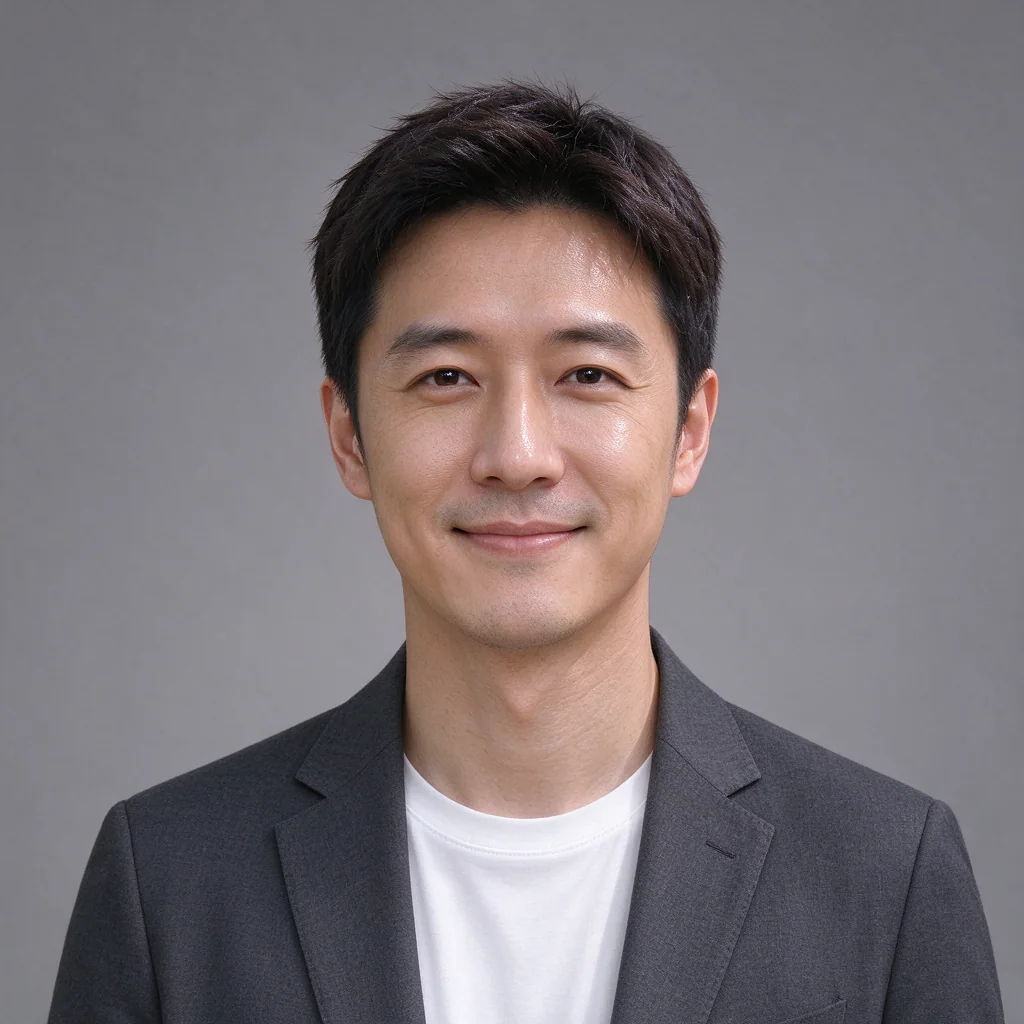 Sample result
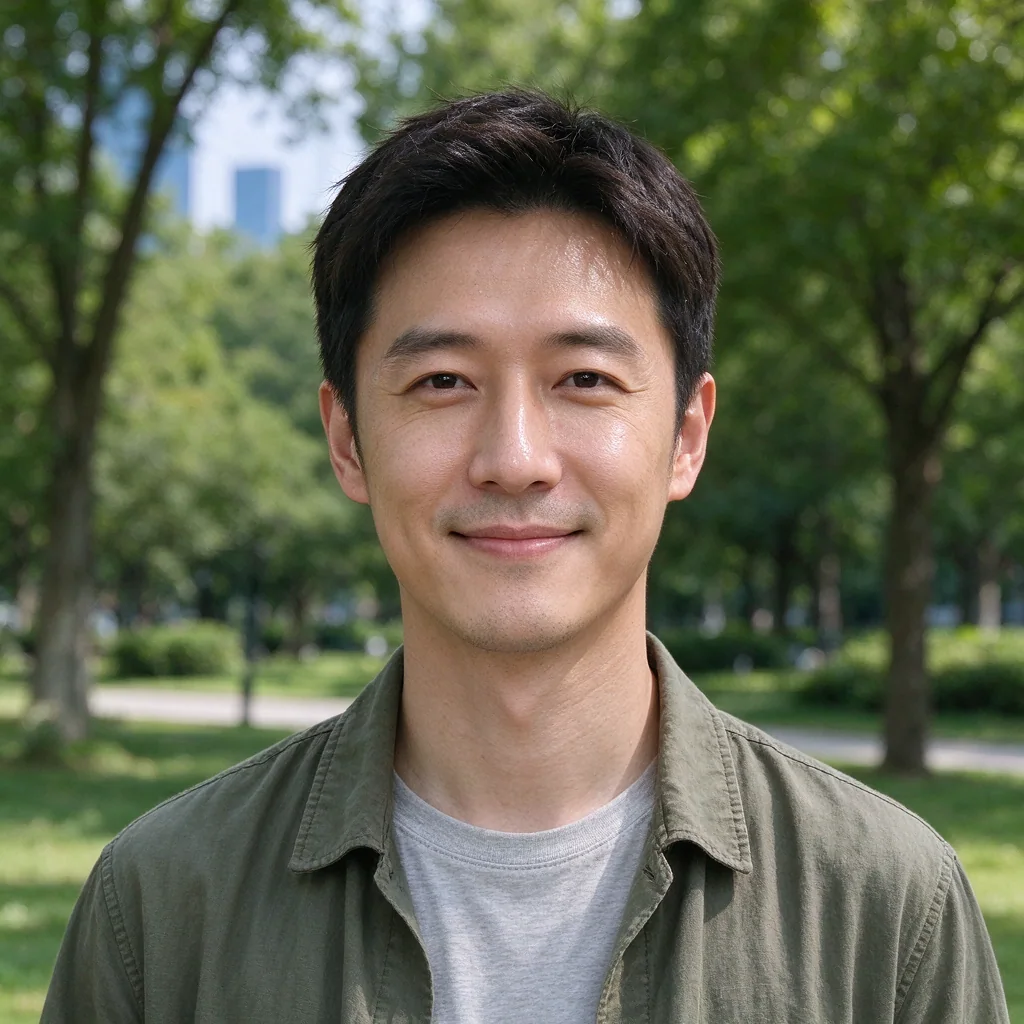
Your generated images will appear here.
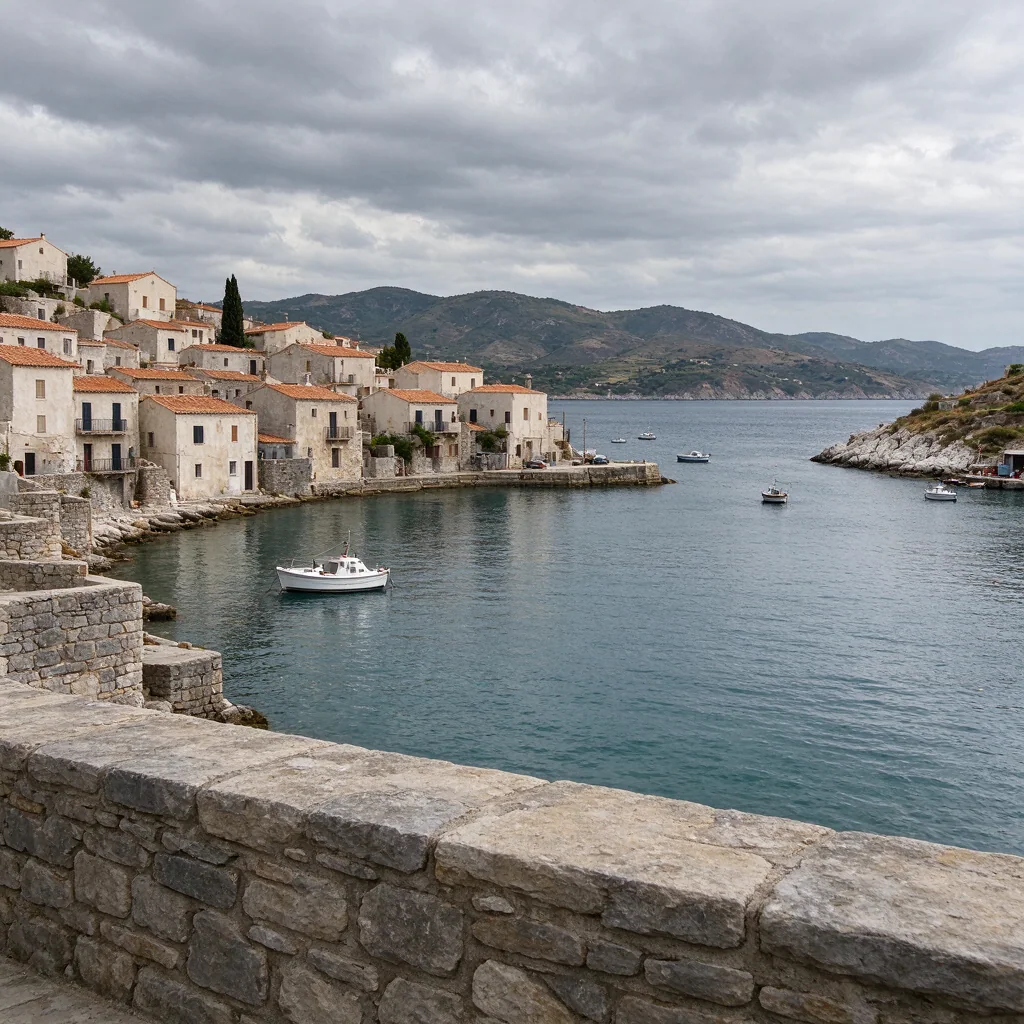
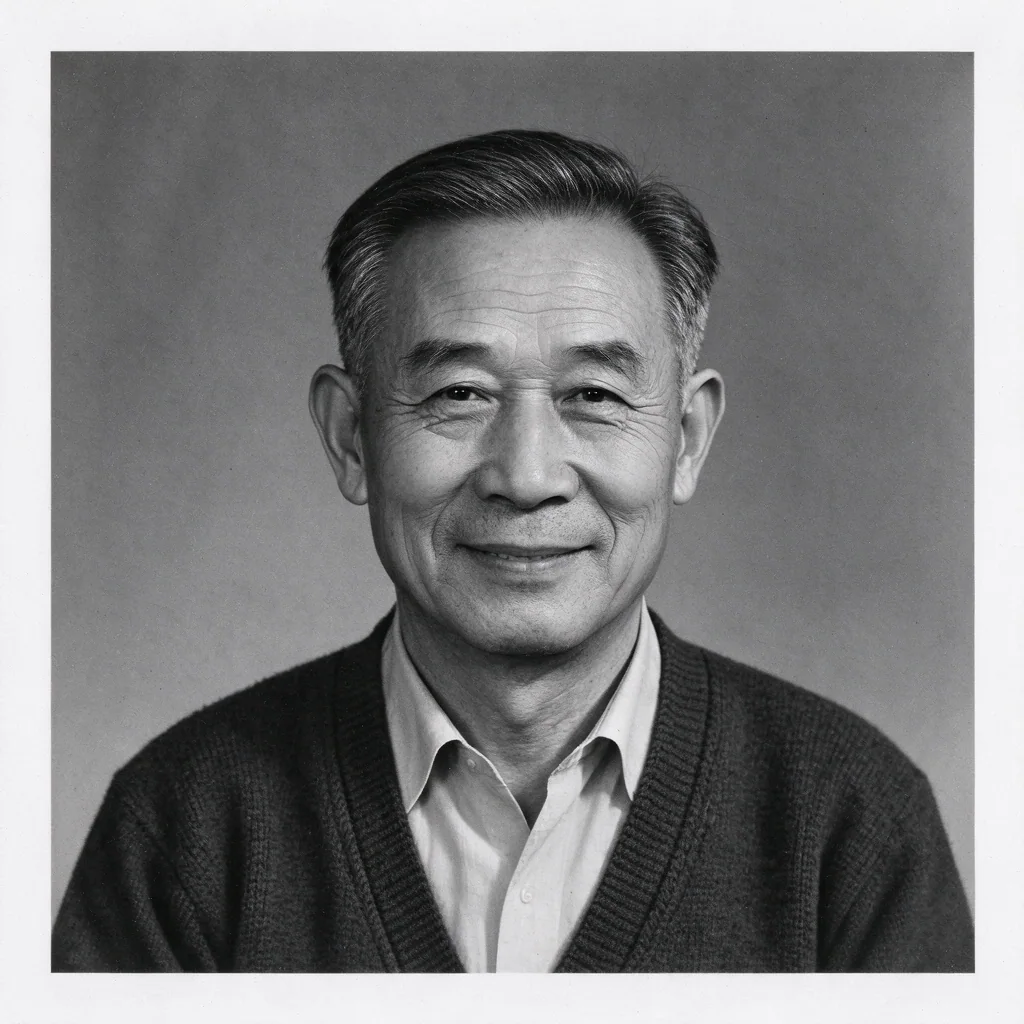
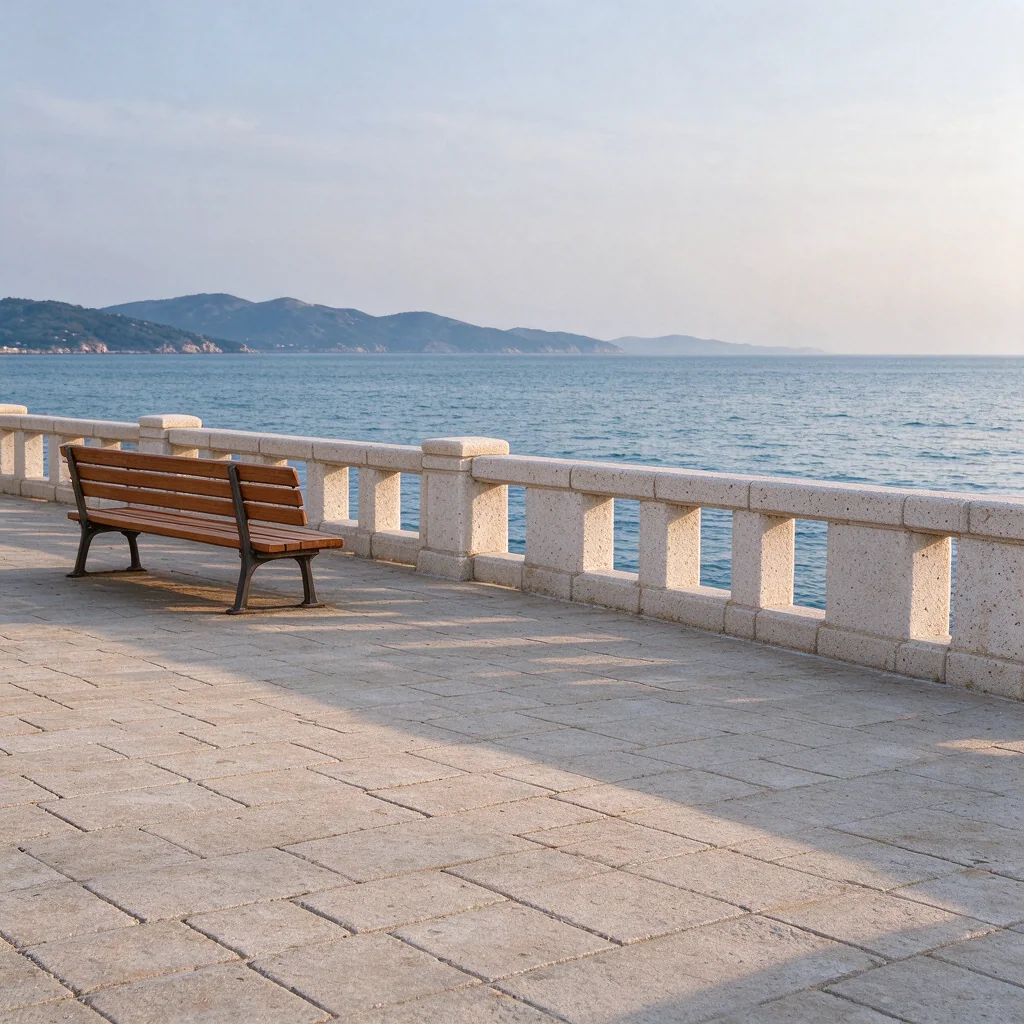
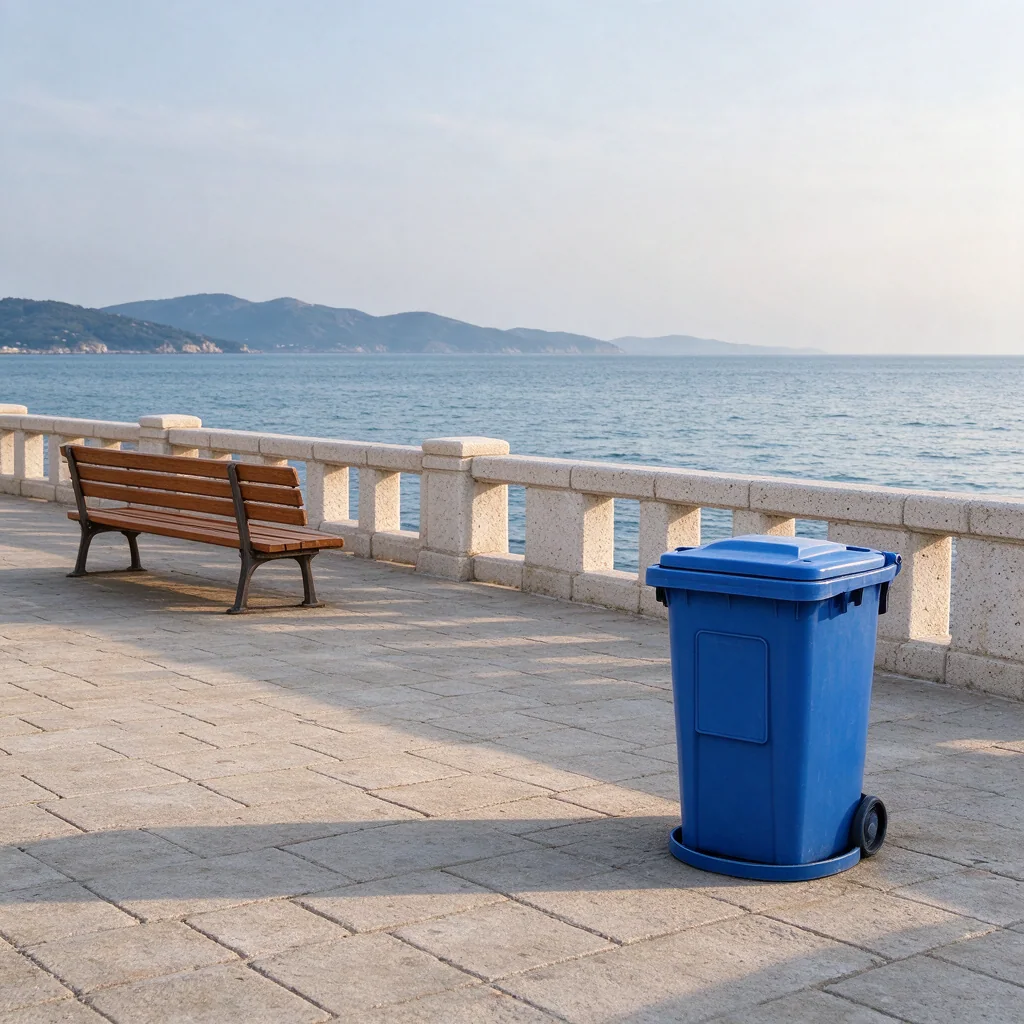
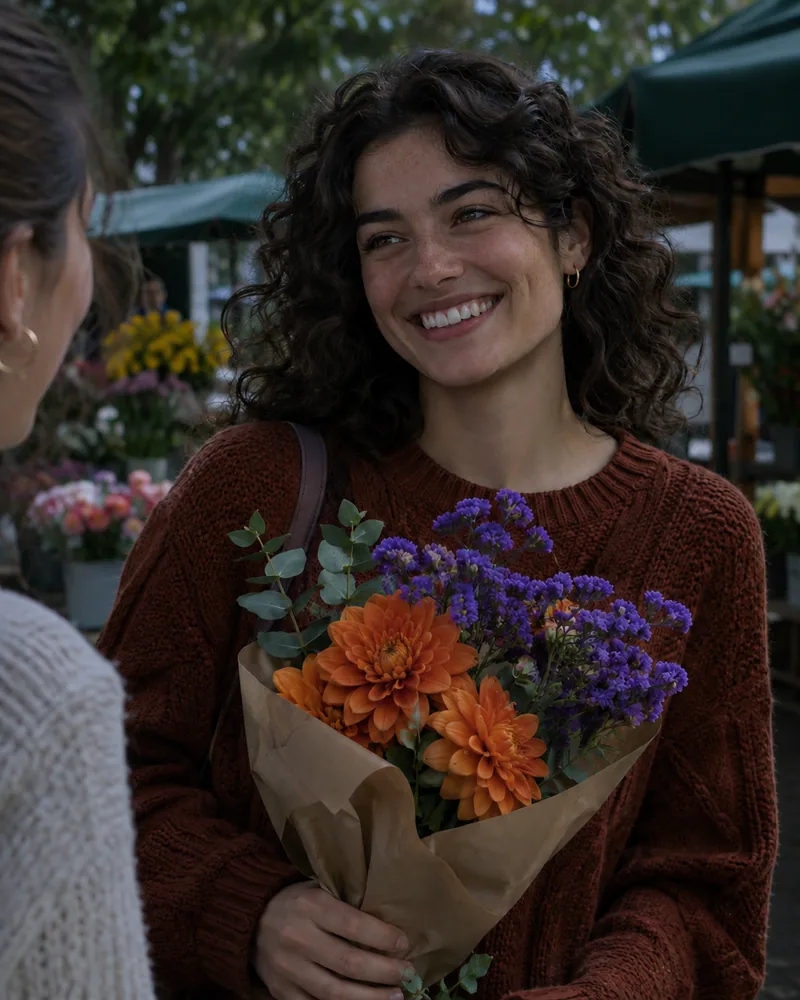 Original
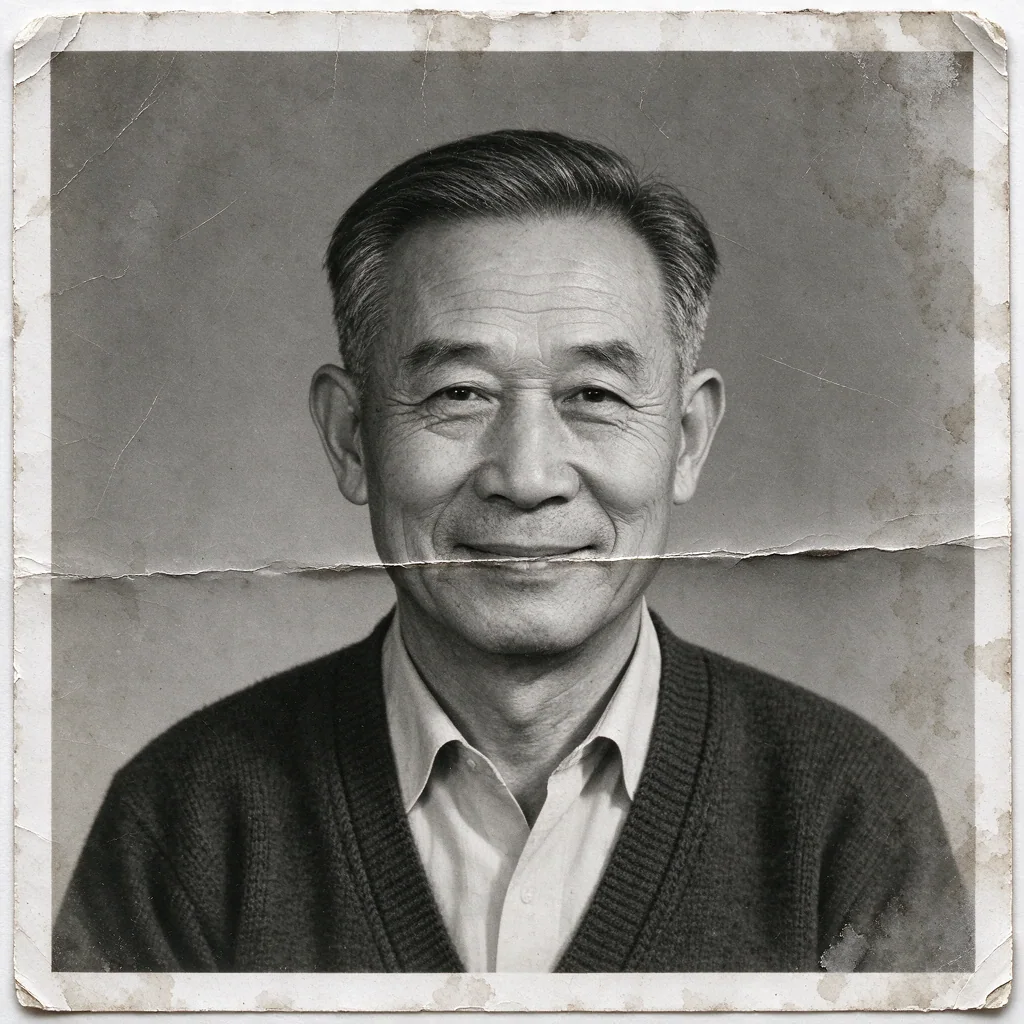
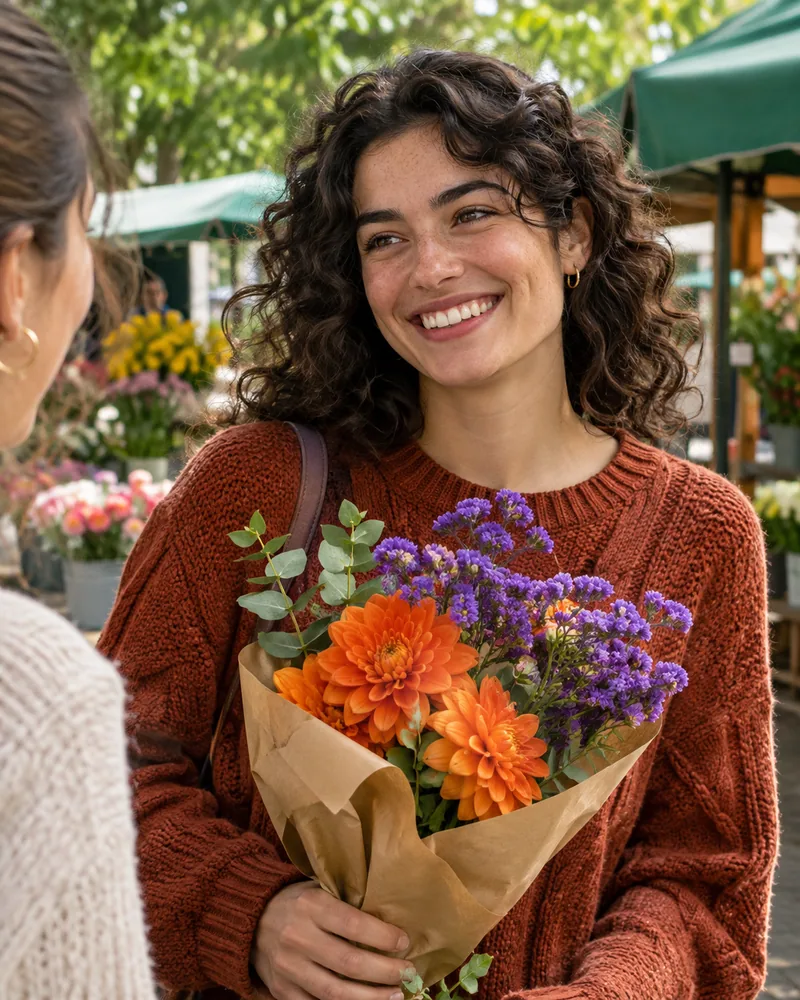 Sample result
In the AI workspace, add the highest-quality copy you have, especially if a screenshot or a messaging app has softened the details.
For a dark portrait, ask for brighter shadows and natural skin texture. Choose a model, check the credit quote and generate.
Compare the face, shadow detail and colors with the original. If the result looks too sharp or smooth, reduce the requested correction and try again.
IMAGE TOOLS
Prepared examples illustrate enhancement, upscaling, colorization and restoration. They are separate from your account results; output varies with the model and photo.
Prepare an editable starting instruction. Applying a template keeps your reference and settings.
Use these instructions in AI enhancement or the image editor. Local preview runs separately without uploading your photo.
Reduce minor background clutter around the main subject.
Review templateReduce scratches and fading while retaining the original color treatment.
Review templateCorrect color casts and balance exposure gently.
Review templateFor a bright or dark line left by a crease, use the nearby tones and grain as a guide.
Review templateINSPIRATION
Explore photo & image editing examples, discover new styles, and find inspiration for your own images.
HOW IT WORKS
Upload an image, describe your edits with a simple prompt, and generate your result. Edit images with AI, right in your browser.
Choose a portrait, a product image, or a memory from your camera roll.
JPG, PNG, and WebP images are welcome. No software to install.
We store your images only as needed to process your edits and only for as long as necessary. Your images are never used to train AI models and are automatically deleted according to our service policy.
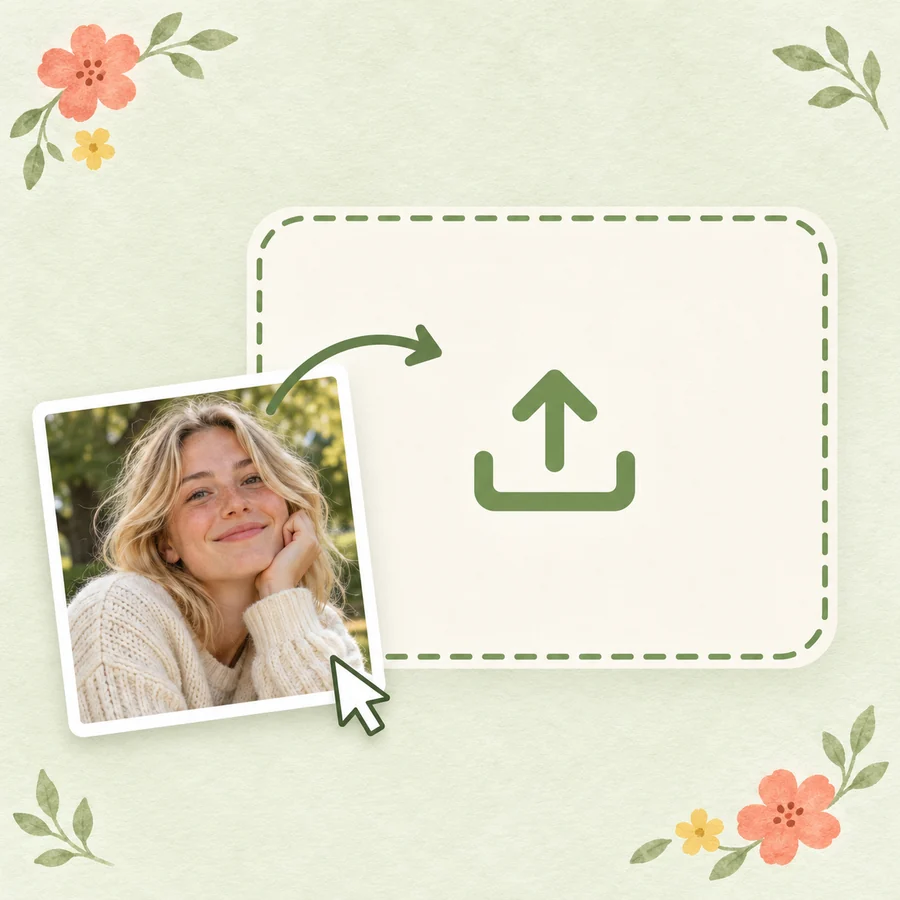
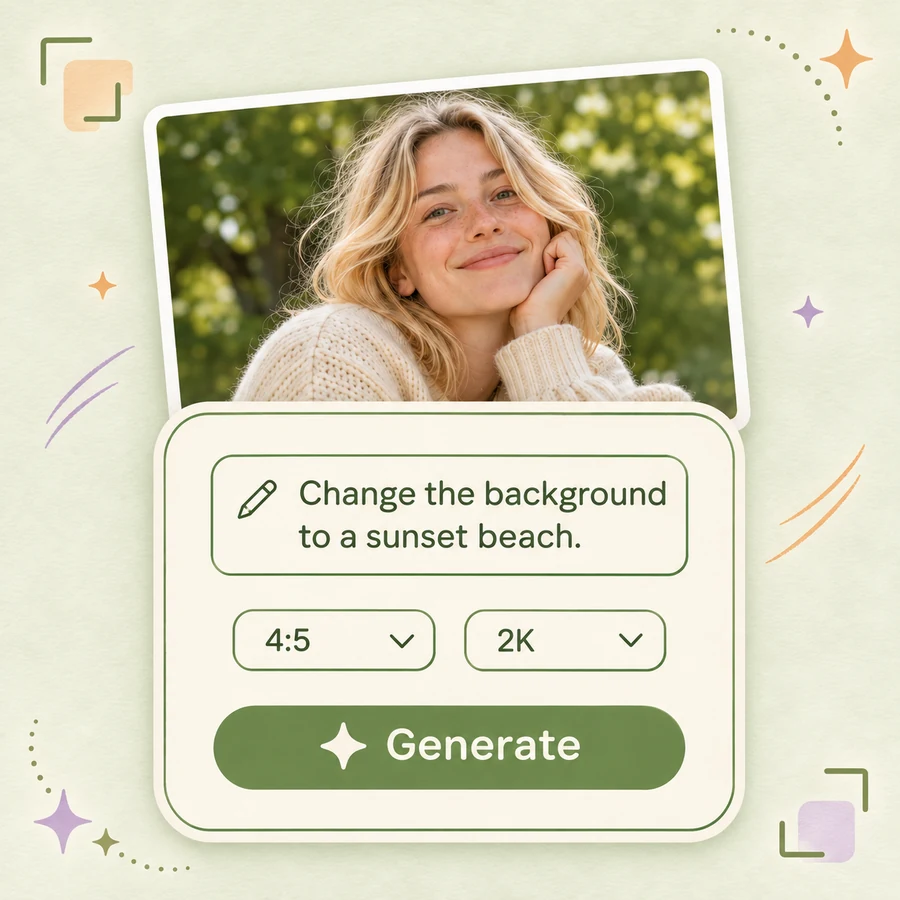
Describe how you want to edit your image, from changing the background to trying a new style.
Choose an AI model, then set the aspect ratio, resolution, and number of images.
Click Start Generating to create an edited image using your prompt and selected settings.
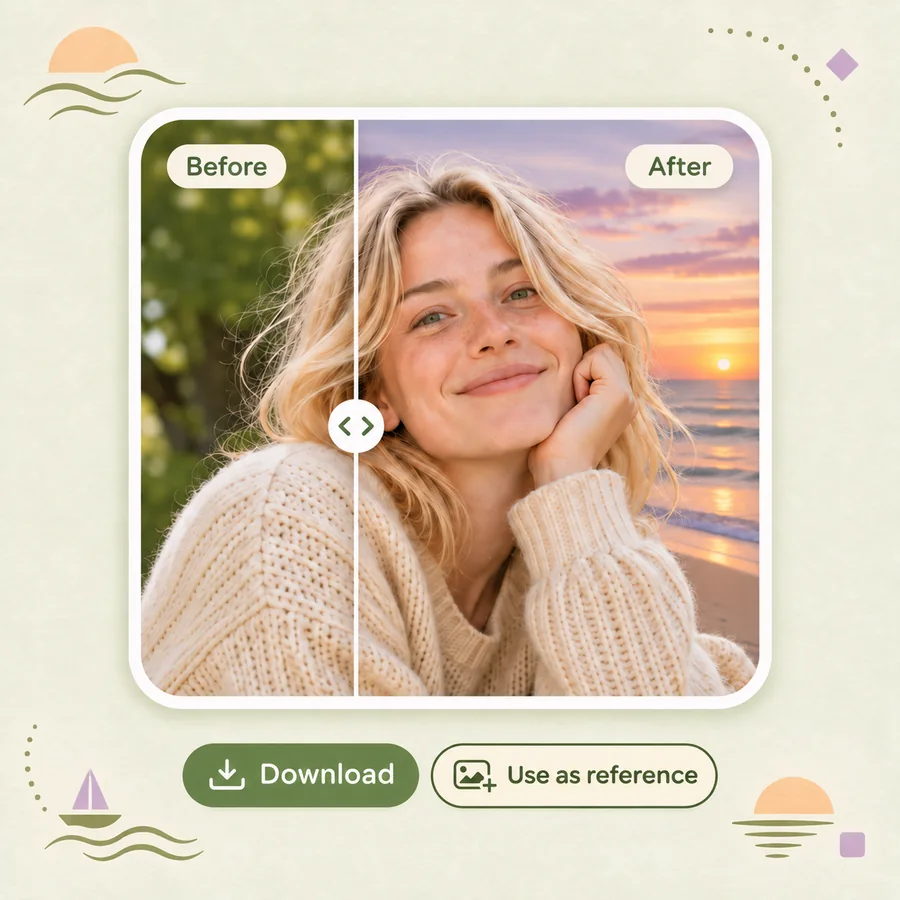
Move the comparison handle to take a closer look.
Download your edited image to keep, share, or use in your next project.
Adjust your prompt or settings to refine the result, or upload a new image to start your next edit.
USE CASES
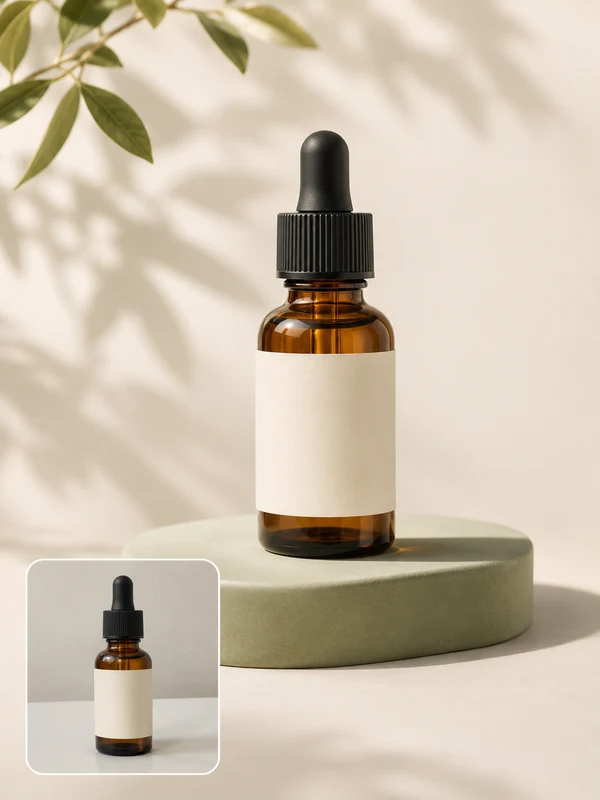 Example edit
Use our AI image editor to replace product backgrounds, create professional headshots, or turn pet photos into illustrations. Choose a use case to preview the edit, then select Use prompt to start.
FAQ
Practical answers about creating, editing, credits, and your images.
Each generation uses credits based on your chosen model, output count, and settings. The editor shows the cost before you generate. Available credit options are shown in the pricing section.
Completed results have a download control in the preview. The available file format depends on the model and settings you select.
You can replace backgrounds, remove unwanted objects, change outfits, edit image text, or explore a new visual style. Describe what you want to change and tell the AI which details to keep.
No. Describe your changes in everyday language, such as “remove the person in the background” or “make the lighting softer.” There is no need to learn complex editing tools.
You can browse examples, edit prompts and preview reference photos locally without an account. New image generation requires a verified login and eligible credits. The one-time 20-credit trial covers single Flash 1K or Lite 2K images when claims are available.
Yes. Models that support multiple references can combine several images in one edit. Explain what to use from each image, such as the subject, clothing, background, or style. Reference limits vary by model.
Click “Upload from phone” in the editor and scan the on-screen QR code with your phone. Select the images you want to edit to upload them directly to your current editor, without transferring them to your computer first.
Reference images and clear instructions can help preserve key features, such as a face, hairstyle, or product shape. Specify which details should stay the same. Results vary by model and the changes you request.
Check the applicable model terms and make sure you have the rights to your uploaded images, reference materials, and intended use.
We value your images and personal information. Please see our privacy policy for details about how uploaded content is handled, how data is used, and how your privacy is protected.