Restore old photos online
Repair creases and scratches in scanned photos or revive a faded family print. The restoration preset preserves the original black-and-white or color treatment.
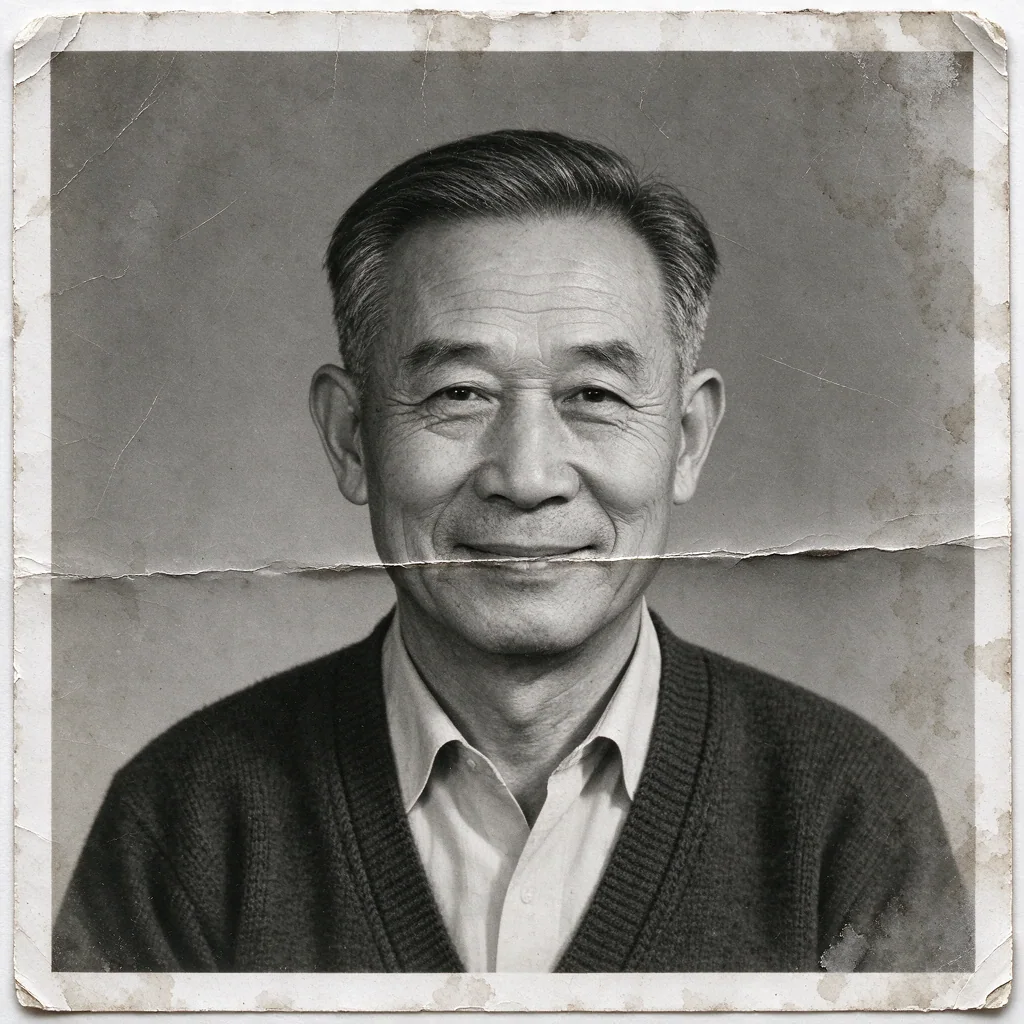 Original
 Sample result
View the prompt used for this result
Restore this damaged black-and-white portrait. Remove the fold crease, scratches, water stains and dirt, and reconstruct the small torn corners. Preserve the same older man's identity, facial proportions, expression, hairstyle, knitted cardigan, collared shirt, pose, crop and studio backdrop. Recover natural facial and hair detail with balanced contrast and subtle vintage film grain. Keep the photograph black and white; do not colorize, modernize, smooth the skin into plastic, add text or change the clothing.
Choose a repair for your photo
Remove fold marks from an old photo
For a bright or dark line left by a crease, use the nearby tones and grain as a guide.
Example editing instruction
Repair the visible fold mark in the scanned photo. Match the nearby tones and grain across the crease, leaving uncertain areas soft. Preserve the original framing, faces, expressions, clothing, surroundings and color treatment. Keep a black-and-white photo black and white. Leave intact details alone.
Remove scratches from an old photo
Target thin surface scratches and dust while leaving hair, seams and other real details intact.
Example editing instruction
Reduce thin surface scratches and dust on the scan. Repair only the damage using nearby tones and textures. Preserve the subject, crop, existing photographic grain, hair and fabric seams. Keep the original color treatment, including black and white where present.
Restore faded family photos
Restore contrast in a washed-out print and balance color only when it was present in the original.
Example editing instruction
Gently restore tonal separation in this faded photograph without crushing shadows or brightening highlights excessively. If this is a color print, reduce fading and unwanted color casts while preserving plausible original colors. Keep black-and-white photos black and white and preserve sepia if present. Preserve the original people, age, expressions, clothing, setting, crop and natural grain. Leave uncertain details soft and add no replacement faces, modern objects or strong saturation.
See a faded family portrait
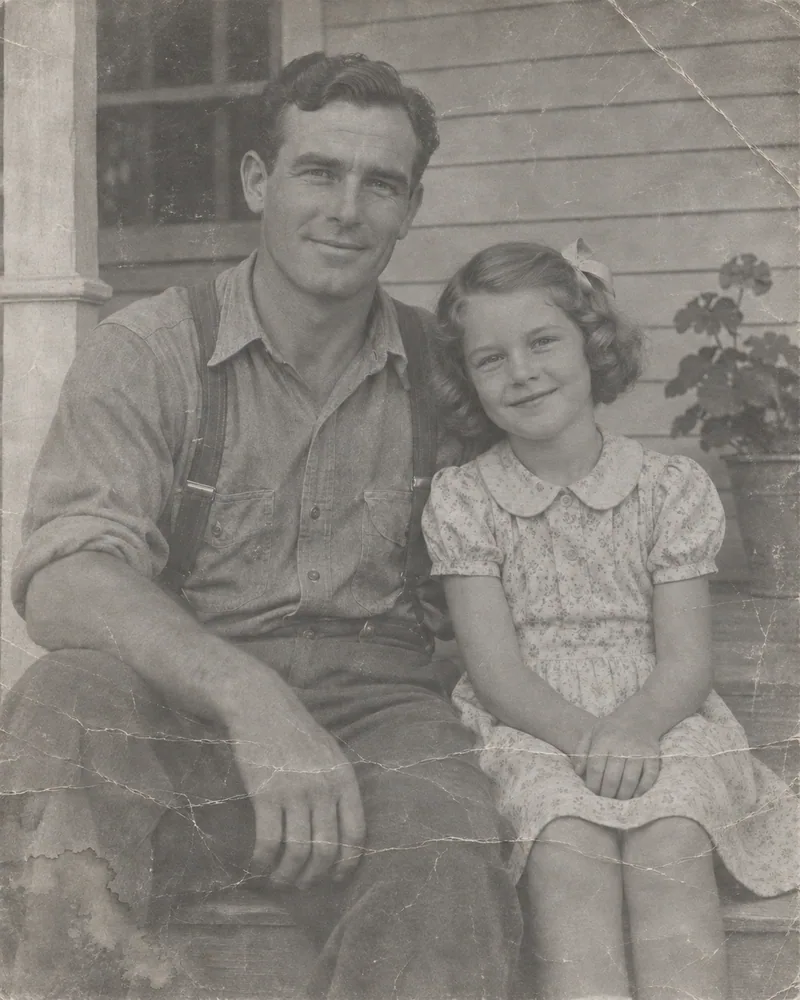 Original
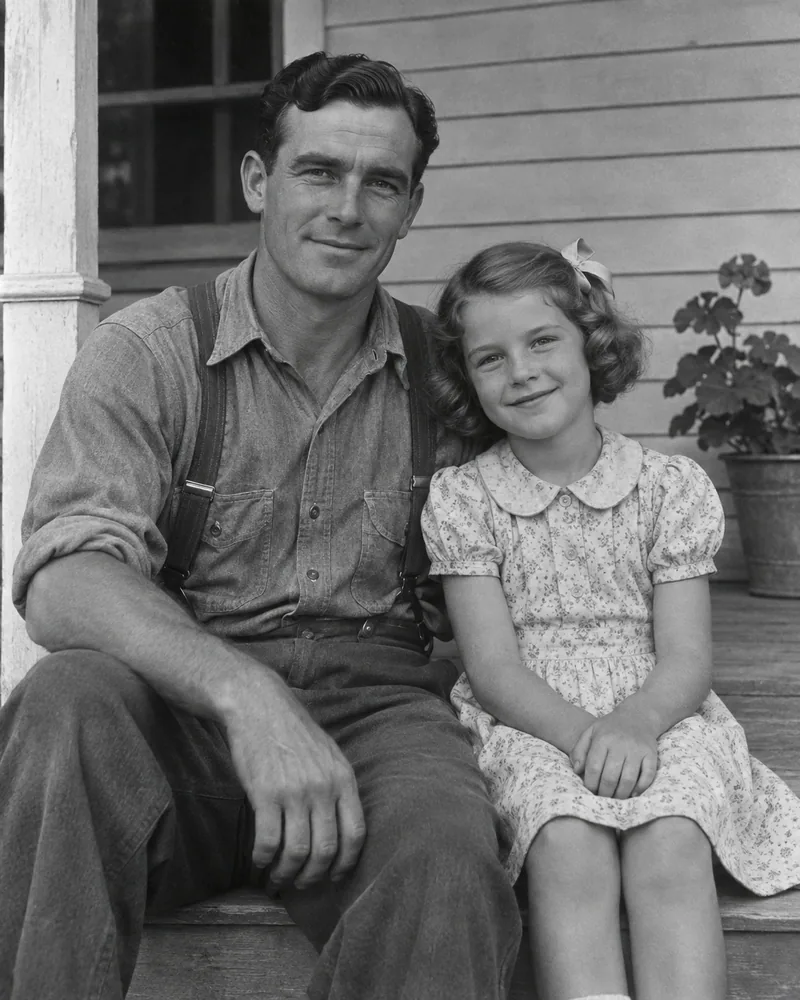 Sample result
How to restore a scanned photo
- Upload your scan
Open the editor in AI mode and upload a straight, evenly lit scan or a photo of the whole print. Use one reference to start.
- Choose the repair
Review the preset and add the location of any stubborn damage. Keep the original tones unless you intend to add color. Check the credit quote before generating.
- Compare and download
Check faces, edges and grain against the original. Download the result when you are satisfied and keep an untouched copy of your scan.